


I'd like to preface this article by saying that I love using Storify to archive Twitter chats. I have been helping out with archiving duties for the #oklaed Twitter chat since last year, and I love how easy it is to add all the tweets to the archive, save it, and then link to it from my website.
The problem I have run into is that once I add elements to an archive in the Storify Editor, I can't always delete them. There is a gray “x” at the top of the element that should let me delete it, but nothing happens.
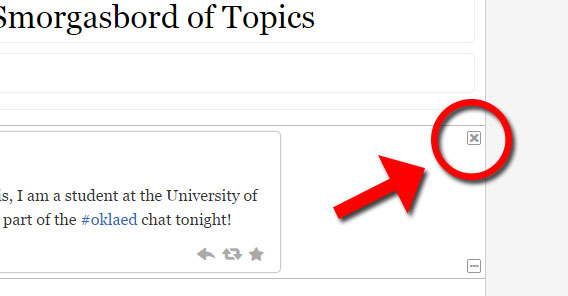
Tonight, it occurred to me that the problem could be a browser issue.
So I logged out of Storify in Google Chrome, my browser of choice, and then logged into the account using Internet Explorer.
Guess what?!
I could delete!
Yippee!
So, if you're every trying to delete an element when you're editing an Storify archive, and you're NOT using Internet Explorer, switch over and see if that helps.
If not, and you find another solution, please let me know!
UPDATE: Bo from Storify.com contacted me today to find out what browser and computing environment I'm using. When I checked Chrome's information, I realized that I needed to update to the latest version. So, I updated my browser, and then opened a test draft in the new version and tried to delete an element.
Guess what?!
I could delete!
Moral of this story: Update your Chrome web browser and try again. If that doesn't work for some reason, try Internet Explorer. If all else fails, go to Storify.com and click the “Need Help?” button at the bottom of the web page. If Bo's response to this post is any indication, they are very interested in supporting their software and making improvements. Kudos!

Hi,
I’m also unable to get the little x to delete elements. I’m running Chrome Version 49.0.2623.87 unknown (64-bit) which came out in March 2016, after your article, so I’m guessing this is the version you updated to. It also does not work in Firefox 45.0
I’ll have a bit more of a dig around, but I find it frustrating that you have to have the most up to date browser to do something like close an element. It isn’t as if they can’t say, if this attempt fails, do it the old browser way is it?
Thanks for posting about it. At least I know I’m not alone.
Tim.